01
Select and press connect
Install and sign in, choose an available route, then confirm connection status.
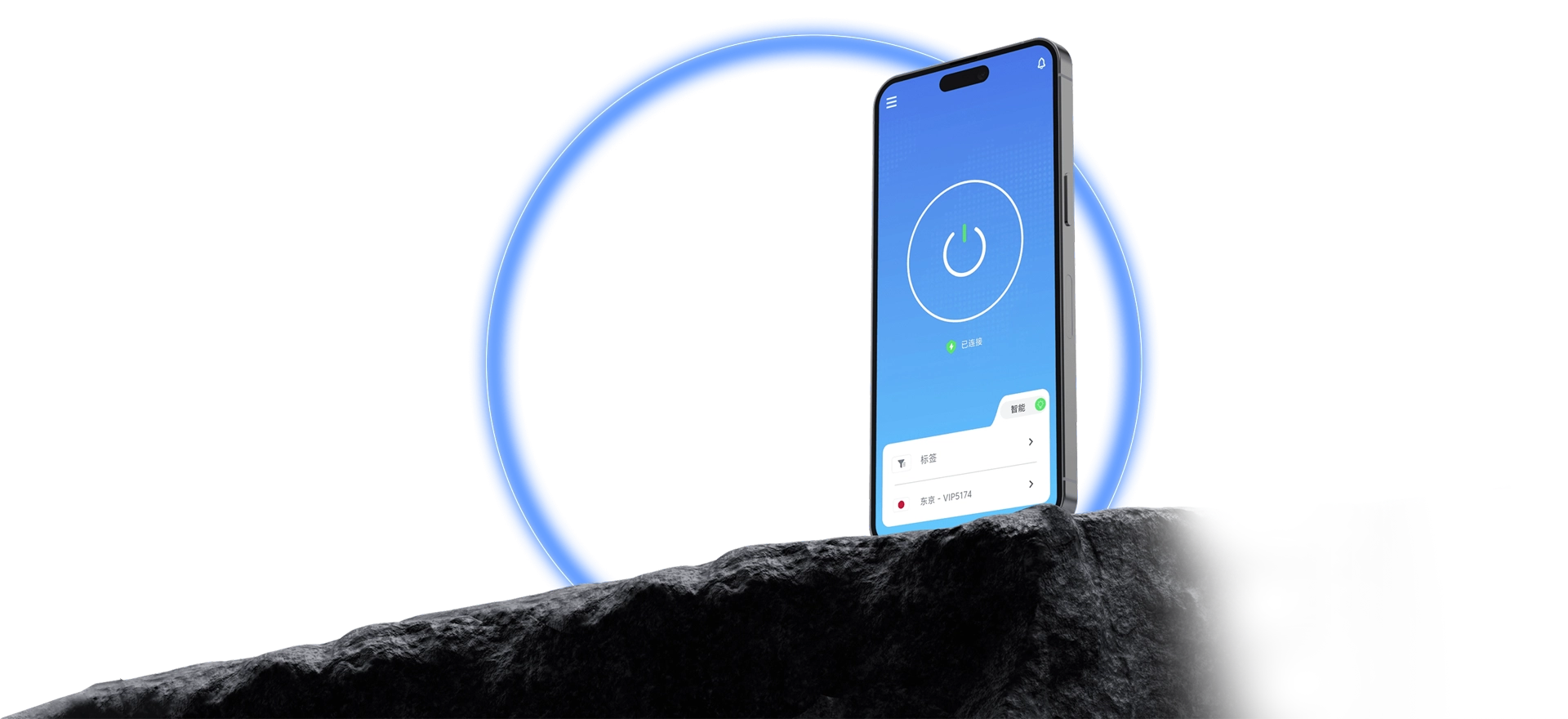
Download and sign in to QuickQ, select an available route, then press connect. Confirm status before browsing, watching, or playing, with clear everyday steps.
QuickQ provides clients for Windows, macOS, Android, iOS, and Linux. Download, install, and sign in, then select an available route, press connect, and wait for confirmation before opening a browser, video, live stream, or game. Faster, steadier use also depends on local internet and route conditions. If buffering or latency changes, check bandwidth and Wi-Fi before disconnecting and switching.
Connect first, then run the checks relevant to what you use.
Install and sign in, choose an available route, then confirm connection status.
Pause large downloads and check Wi-Fi signal and other-device traffic.
Confirm the connection and avoid switching during a critical game.
Get the matching client and keep the existing account on another device.
Choose the system for the computer, phone, or tablet.
Prepare the network before playback or the next match.
Download QuickQ for the computer, phone, or tablet system.
Sign in, choose a route, press connect, and wait for connected status.
Try a short video or a non-critical game area first.
These are use cases for the network connection. Access and results also depend on the destination service, account, device, local network, and selected route.
Local bandwidth, wireless signal, background downloads, destination servers, and device performance all matter. Pause large transfers and compare the same content across routes.
Pause downloads and cloud sync, check Wi-Fi signal, and refresh the player. If it continues, disconnect and compare another route.
Install, select a route, confirm status, then open a video or game.